Keyword research is about finding opportunities for your website to provide content that satisfies the needs of common searches in your market.
Ranking well for common searches is tough, which is why Semrush offers a range of tools to identify the best target keywords for your website, from popular, high-volume queries to less common long-tail keywords.
These tools offer different ways to research and find valuable keywords for your SEO plans. Whether you’re a seasoned pro or totally new to SEO, you can get started with them today. These are the tools to know:
- Keyword Magic Tool: To find thousands of related keyword ideas from a single seed keyword
- Keyword Gap Tool: To discover the specific keywords your competitors rank for that you don't
- Organic Research: To analyze competitor keyword strategies and find ideas from their success
- Saved Keywords: To collect the keywords you find across Semrush in lists and keep your research in one place
Follow this keyword research guide to create Semrush keyword lists that are tailored to your website.
Step 1: Identify Your Competition
As you dive into keyword research, it's important to know who your online competitors are. Knowing your online competitors helps you see what they're doing right to attract your audience.
By studying their tactics, you can find effective keywords to use, spot content gaps, and pick up successful strategies to boost your own website's performance and get ahead in search results.
Here’s how to get started:
- Enter your domain name into the Organic Research tool and click "Search." (1)

- From the Overview Report, head to the "Competitors" tab. Here, you will find your domain’s current top competitors based on common organic keyword rankings.
- Review the list and choose up to 4 of the websites listed to use in your comparison. (2)

Note: If your website is brand new or very small, you might not see much data initially. In this case, try using a well-established website in your niche as a reference to discover more competitors. - Go to the "Positions" tab to view any competitor's keyword portfolio. You’ll see all of the keywords where their website ranks within the top 100 positions on Google. Use the filters panel to sort by search volume, difficulty, or SERP features to find valuable keywords to add to your list.

-
To add the desired keywords, use the checkboxes next to each keyword to select them, and then:
- Click the "+ Add to keywords list" button to add them directly to your keyword list in the Keyword Strategy Builder.
- Alternatively, export the selected keywords to a spreadsheet for further analysis or sharing with your team.
This approach allows you to capture the insights gained from your competitors and apply them to your SEO strategy.
2. Find the Keyword Opportunities in Your Market with a Gap Analysis
The Keyword Gap tool allows you to compare multiple keyword portfolios at a time to find untapped opportunities for your website.
- Enter your top competitors in the Keyword Gap tool with your domain in the first input field and compare organic keywords in the regional database that you want to target. (3) This report will show you all of the interactions between the keyword portfolios of you and your competitors.

- To identify the easiest keywords to target, apply a filter for Keyword Difficulty to analyze keywords with a custom KD range less than 50. The lower the KD score, the easier it would be to target the keyword and successfully rank for it in organic search with your site. (4)
Note: The “Top Opportunities” widget highlights the best keyword opportunities for your domain labeled according to any filters you apply.
- To quickly sort and analyze keywords by a specific search intent, use the Intent filter (5). It is possible to select one or several intent types to filter for the right target keywords. You can make decisions on whether and how to target a keyword based on a user's intent: transactional, commercial, informational, or navigational.
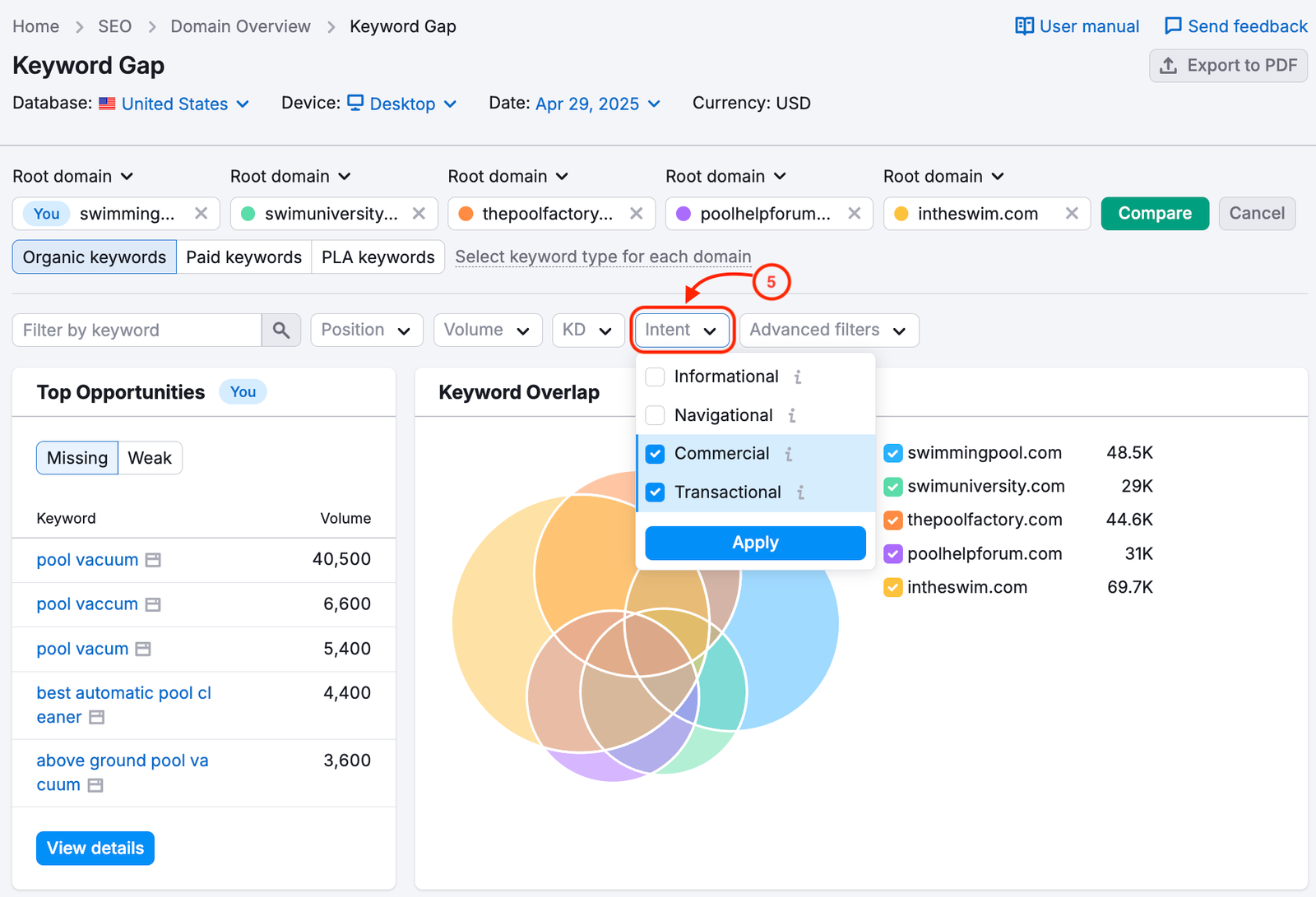
The filter makes it easy to compare how your competitors rank for the keywords of a specific intent type. To see the full URL associated with a certain keyword, you can hover over the position.

- Look at the Missing and Weak lists (6)—these are the keywords where your site either has much worse rankings than your competitors, or you have none at all while they are ranking.
- Identify the keywords that are most relevant to your website with low KD and of a specific search intent, and use the checkbox to add them to a list in Saved Keywords (7).

Here is how the report should look. Once you’re happy with the keywords you’ve found in this process, export your list to a file to save your research (8) or use the + Add to keyword list button to add your terms directly to Saved Keywords.

Step 3. Uncover Long Tail Keywords
Once you’ve identified some general topics to target from the Keyword Gap exercise, you can go deeper into keyword research with the Keyword Magic Tool to find long tail keywords.
Long tail keywords are search terms that are less popular, but highly specific in detail. For these reasons, they often can be targeted via SEO with less difficulty than high-volume keywords.

An example of a long tail keyword would be "very small inground pools." Compared to a more popular search term like "swimming pools," this query has more detail and specific intent.
- Enter your target keyword as a "seed keyword" here to find more ideas ("in ground pools" for example). (9)

- For results tailored specifically to your website, enter your URL in the AI-powered search bar and use AI to assess your Personal Keyword Difficulty (PKD) and topical authority.
- Apply a filter for KD % (Keyword Difficulty) to find keywords that are easy to target and relevant to your site, and another filter for Word count greater than 4 for finding those longer phrases with 4 or more words in them. (10)

- Review the long-tail keywords from this report and look for any relevant topics to add to your list. If you see a lot of long-tail keywords around a single subtopic, it could be a good opportunity for you to target the topic with content on your website. See below all of the long-tail keywords about in ground pools.

Tip: Use the Send keywords button to directly transfer keywords to the Position Tracking tool for monitoring or to Saved Keywords to organize them into lists.
If you’re ready to save your research, you can export the list of keywords (choose your number of rows or select specific keywords with the checkboxes) to a spreadsheet file.
Step 4. Organize Your Keywords and Outline Your Content Plans
Once you’ve built your Semrush keyword lists, you can organize them in Saved Keywords. From this tool, you can filter, sort, and review your keyword list.
You can also start a new list from scratch in Keyword Strategy Builder with just a few seed keywords. This AI-powered tool helps you build a keyword strategy by finding the most relevant keywords and organizing them into topic clusters.
Collecting Keywords in Saved Keywords
First, here’s how to send keywords from other tools to Saved Keywords:
- In Keyword Magic Tool, select keywords, click “Send keywords,” select Saved Keywords, and click “Apply.” (11) In Keyword Gap, use the “+ Add to keyword list” button instead

- Head over to Saved Keywords and click on your list (12). You’ll see all of your keywords collected in this table, with metrics for each keyword.

With your list, you can:
- Prioritize keywords based on search volume and competition level with the Volume and KD % filters (13)
- Analyze the search intent of each keyword in the Intent column (14)
- Export your keywords to use as the foundation for your content strategy (15)
- Create SEO-friendly articles with AI: click Generate content and select Article to open them in Content Optimizer (16)

Generating a Ready-Made Keyword List with Topic Clusters
Another way to create your keyword list is to start it from scratch in the Keyword Strategy Builder. Enter up to five seed keywords to create a list.

This approach unlocks the Topical Overview map and preset filters that quickly organize your keyword opportunities based on your specific goals.

The Topical Overview map shows the pillar pages and subpages to create in your strategy. Below, you’ll see the list of topics that you can expand or minimize to review your strategy.

The preset filters can help you quickly target keywords based on different strategic goals:
- Best for Strategy: Shows you the ideal topics to target based on having a mix of the following:
- Topics that are relevant to your seed keyword
- Optimal KD & volume combination
- Non-navigational intent (meaning keywords that are not just looking to find a specific website that isn’t yours)
- Easy Start: Focuses on keywords with lower difficulty and decent volume, filtering out anything above the median KD for quick wins
- Quick Conversions: Prioritizes commercial and transactional intent keywords to drive bottom-funnel traffic with higher conversion potential
- More Potential Traffic: Highlights keywords with higher search volume to maximize visibility and traffic acquisition
Under each topic, you can expand the drop-down to see individual pages and keywords related to that topic, complete with their own metrics and SERP features.

This method is especially useful for developing detailed keyword lists that span an entire subject area rather than targeting individual keywords or pages.
Step 5: Implement and Track Your Keyword Strategy
Now that you have a list of keywords, you can implement your SEO strategy:
- Add the target keywords to a campaign with your domain in the On Page SEO Checker to gather ideas for optimizing your site for those keywords.
- Create SEO content briefs based on your target keywords to start the content creation process.
- Generate articles directly from Saved Keywords or Keyword Strategy Builder with Generate content. Articles open in Content Optimizer.